5S in Offices: Practical Examples for Knowledge Teams
5S isn’t just for factories—it’s one of the fastest ways to reduce “searching,” confusion, and rework in office and knowledge work. Here are practical 5S office examples you can apply to digital workspaces, shared files, and daily team execution.
Why 5S works so well in office and knowledge work
In knowledge teams, the biggest hidden waste is time spent looking—for the right file, the latest version, the current priority, the owner, the status, or the process. 5S reduces that friction by making “where things are” and “how we work” obvious.
When applied to offices, 5S helps you:
- Reduce searching, context switching, and “where is that?” messages
- Lower errors from outdated templates and duplicate files
- Speed up onboarding (new people find things fast)
- Create predictable, repeatable work habits
The 5S steps (office version)
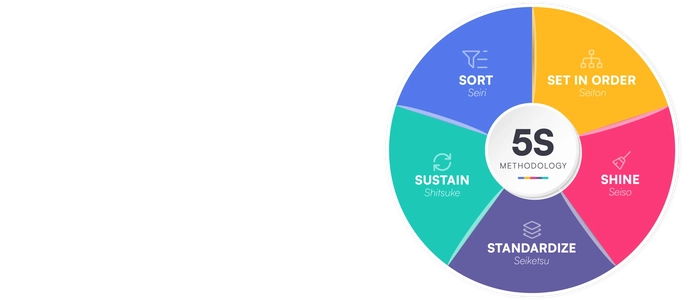
5S stands for: Sort, Set in Order, Shine, Standardize, and Sustain. Below are office-ready examples for each step—especially for teams working across shared drives, project tools, and remote collaboration.
1) Sort: remove what you don’t need (and stop creating duplicates)
Goal: eliminate outdated, unused, and confusing items that slow work down.
Office 5S examples for Sort
- Archive old versions of templates and documents (keep only the current version in the main workspace)
- Delete duplicate files and consolidate to one “source of truth”
- Remove unused tools (extra Slack channels, redundant trackers, abandoned boards)
- Limit active projects so the team isn’t juggling too many priorities at once
Quick “Sort” rule your team can adopt
- If a file/tool/process hasn’t been used in 90 days, archive it (don’t keep it in the “active” area).
- If there are two places for the same information, pick one and retire the other.
2) Set in Order: make the right thing easy to find in 10 seconds
Goal: make storage and navigation obvious so people don’t rely on tribal knowledge.
Office 5S examples for Set in Order
- One home for each workflow (e.g., “Intake,” “In Progress,” “Review,” “Done” folders or spaces)
- Clear naming conventions (project name + date + version rule)
- Single “Current Templates” folder with only approved templates
- Owner labels on key areas (who maintains this space?)
Make it visual (so it stays usable)
A simple visual management layout reduces confusion fast. If you want examples of how teams structure boards and spaces so they’re easy to read, use Visual Management Boards: Examples & Templates as inspiration.
3) Shine: clean up regularly (not when it’s already a mess)
Goal: prevent gradual decay—clutter and confusion return unless you clean continuously.
Office 5S examples for Shine
- Weekly “workspace reset”: remove abandoned drafts, close stale tickets, update priorities
- Inbox zero for intake areas: no request should sit untriaged
- Dashboard refresh: ensure status boards reflect reality (not last week)
- Template cleanup: remove or rewrite templates that create confusion
10-minute Shine routine (works for remote teams too)
- What’s outdated or duplicated?
- What’s unclear or missing an owner?
- What’s blocked and needs a decision?
- What can we archive today?
4) Standardize: turn “best practice” into the default practice
Goal: create one repeatable way to do common work so quality improves and lead time drops.
Standardize the areas that cause the most rework:
- Intake checklist (what must be included before work starts)
- Definition of Done (what counts as complete)
- Review checklist (what reviewers check so cycles shrink)
- Handoff checklist (what the next step needs)
If you want a step-by-step approach to making work repeatable without turning it into bureaucracy, use Standard Work: How to Create Reliable Processes.
5) Sustain: keep 5S from fading after two weeks
Goal: build habits and accountability so the workspace stays clean and useful.
Office 5S examples for Sustain
- Assign ownership for shared spaces (not “everyone,” a real person)
- Audit lightly: 5-minute monthly check of key folders/boards
- Make problems visible: flag clutter, duplicates, and broken naming
- Reward consistency: celebrate teams that keep work easy to find
Where WIP fits into 5S for knowledge teams
In offices, clutter isn’t just files—it’s also too much work in progress. When WIP is high, everything slows down, work waits longer, and priorities get fuzzy.
Start by measuring WIP clearly with How to Measure Work-in-Progress (WIP) the Right Way. Then define and enforce limits using What Are WIP Limits? (And Why Most Teams Ignore Them). If you want a deeper, tactical playbook, use The Ultimate Guide to WIP Limits: Why 3 Is the Magic Number.
Use Obeya-style alignment to sustain office 5S across teams
When 5S spans multiple teams (shared requests, shared tools, shared priorities), alignment becomes the difference between “clean today” and “mess tomorrow.” Obeya principles help teams keep priorities, constraints, and decisions visible.
Start with What Is Obeya? (Room of Strategy Explained), then see how high-performing teams apply it in Project Obeya Rooms: How High-Performing Teams Align.
A practical 5S rollout plan for an office team
- Week 1: Sort + Set in Order (clean clutter, pick sources of truth, fix structure)
- Week 2: Standardize (templates, checklists, naming, definitions)
- Week 3: WIP discipline (measure WIP, set limits, reduce active work)
- Week 4: Sustain (owners, quick audits, lightweight cadence)
Related Articles
- How to Measure Work-in-Progress (WIP) the Right Way
- What Are WIP Limits? (And Why Most Teams Ignore Them)
- The Ultimate Guide to WIP Limits: Why 3 Is the Magic Number
- What Is Obeya? (Room of Strategy Explained)
- Project Obeya Rooms: How High-Performing Teams Align
- Visual Management Boards: Examples & Templates